

How to Check a Computer’s Specifications for First-Time Buyers
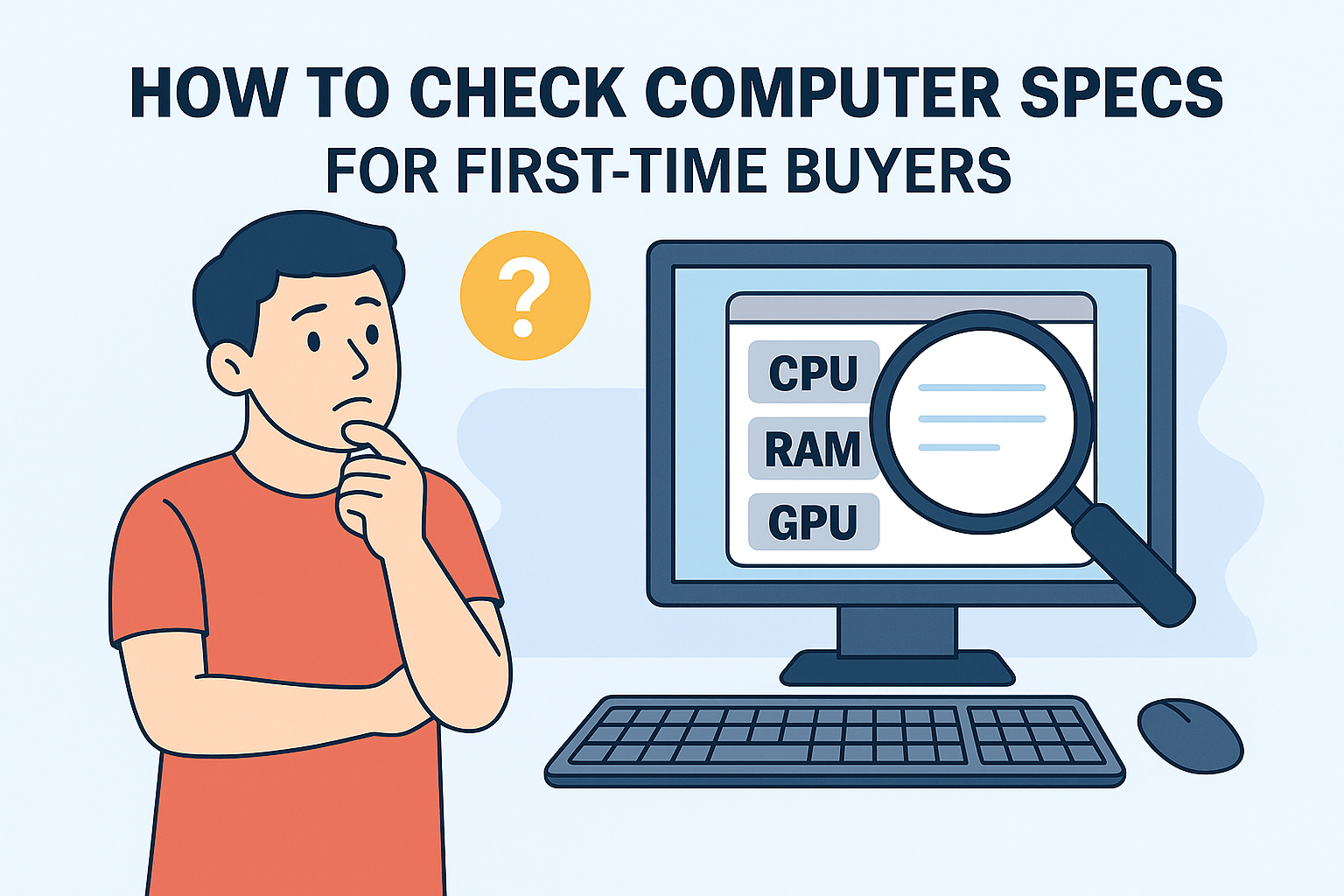
Th8
If this is your first time buying a computer, checking the specifications can be confusing because of all the technical terms.
Here’s a simple, step-by-step guide so you can quickly check without being overly influenced by sales staff.
1. The Most Important Specs to Check
When buying a computer (PC or laptop), focus on these 5 key factors:
CPU (Processor) → Determines speed and processing capability.
-
Options: Intel (Core i3, i5, i7, i9) or AMD (Ryzen 3, 5, 7, 9).
-
Higher generation numbers mean newer chips, e.g., i5-1240P (12th gen), Ryzen 5 5600U.
RAM (Memory) → Affects multitasking capability.
-
Office use: 8GB is enough.
-
Graphics/gaming: 16GB or more.
Storage (Hard Drive) → SSDs are much faster than HDDs.
-
Choose SSD (256GB or more).
-
For large storage needs: SSD + HDD.
Graphics Card (GPU) → Important for gaming, design, and video editing.
-
Integrated: enough for office work, studying.
-
Dedicated (NVIDIA, AMD): needed for gaming, 3D, and graphics work.
Monitor
-
Resolution: Full HD (1920×1080) as a minimum.
-
High refresh rate (144Hz, 165Hz) for gaming.
2. How to Check Specs Directly on the Computer
If the device is powered on:
-
Windows: Press
Windows + R→ typedxdiag→ press Enter → view CPU, RAM, GPU. -
Or: Right-click This PC / My Computer → Properties to check CPU and RAM.
-
To check storage: Open File Explorer → This PC → view capacity.
3. Checking from Documents or Website
-
Compare each spec mentioned in section 1.
-
Don’t just look at the CPU name (e.g., i7) without checking its generation (older i7s can be weaker than newer i5s).
-
Prefer newer generations + SSD over older, more powerful chips without SSD.
4. Tips to Avoid Overpaying
-
Ask for the production year / CPU generation.
-
Check the actual device; open System Information for confirmation.
-
For used laptops, inspect battery, keyboard, and screen (check for bright or dead pixels).
-
Don’t trust stickers/spec sheets entirely—parts may have been replaced.